Screenshots
Overview
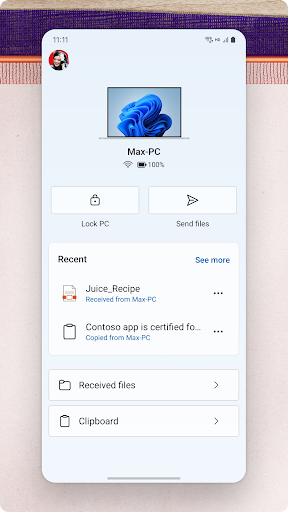
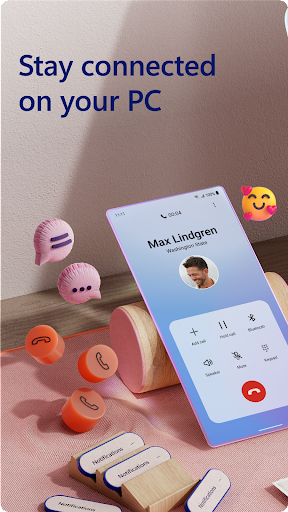
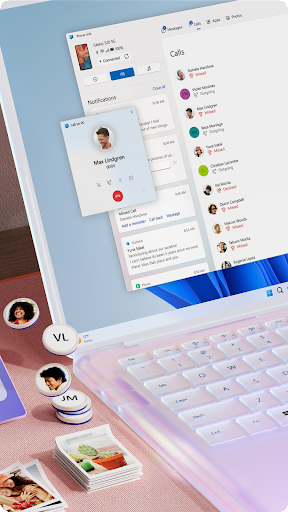
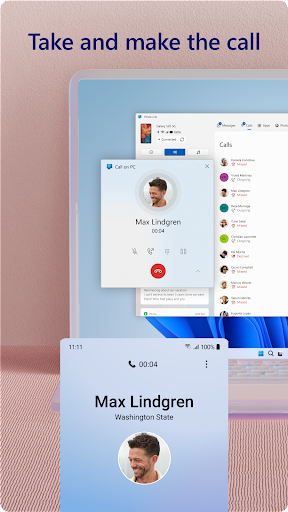
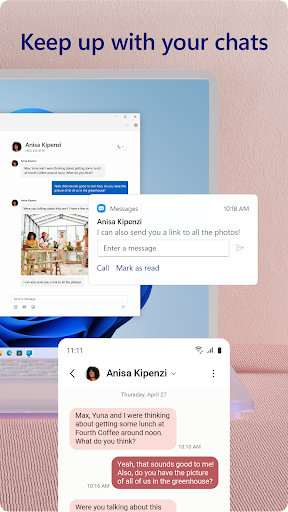
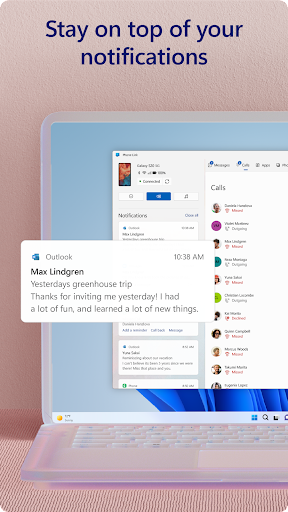
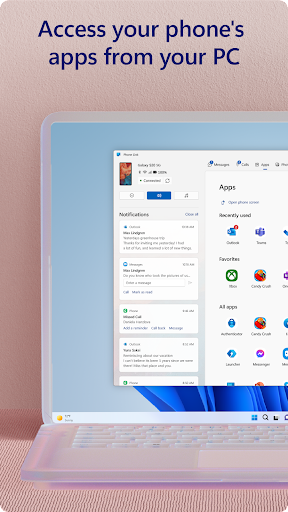
You love your phone. So does your PC. Get instant access to everything you love on your phone, right from your PC. To get started, install the Link to Windows app on your Android phone and connect it with the Phone Link on your Windows PC. Link your Android phone and PC to view and reply to text messages, make and receive calls, view your notifications, and more.
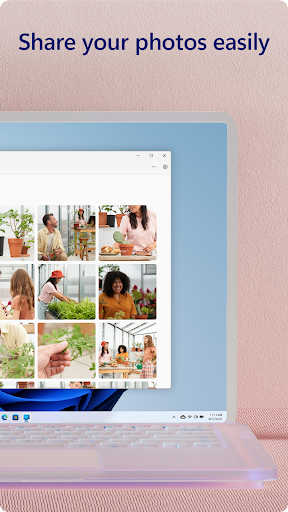
Make emailing yourself photos a thing of the past as you share your favorite images between your phone and PC. Copy, edit, and even drag and drop photos without ever touching your phone. Phone Link features: Make and receive calls from your PC Manage your Android phone's notifications on your PC Access your favorite mobile apps on your PC Read and reply to text messages from your PC Drag files between your PC and phone Copy and paste content between your PC and phone Instantly access the photos on your phone from your PC Use your PC's bigger screen, keyboard, mouse, and touch screen to interact with your phone from your PC.
Integrated with select Microsoft Duo, Samsung, and Honor phones for an even better experience: The Link to Windows app comes integrated so no additional apps need to be downloaded from the Play Store. Link to Windows is easy to find in the Quick Access tray (swipe down from the top of your screen to access it). Exclusive features like cross-device copy and paste, Phone screen, file drag-and-drop, and Apps. Let us know what features you'd like to see next by selecting "Send feedback" in the Phone Link settings. Calls requires a Windows.
Features
10 PC with Bluetooth capability. Drag and drop, Phone screen and Apps all require a compatible Microsoft Duo, Samsung or Honor device (full list and breakdown of capabilities: aka.ms/phonelinkdevices). The multiple apps experience requires a Windows 10 PC running the May 2020 Update or later and has at least 8GB of RAM, and your Android device must be running Android 11.0. The Link to Windows accessibility service is for those using a screen reading tool on the PC. When the service is enabled, it lets you control all your phone's apps from your PC using Android keyboard navigation while receiving spoken feedback from your PC speakers.
No personal or sensitive data is collected via Accessibility Service. The interface is organized for quick access to the most frequently used functions, reducing the time needed to complete common tasks. Advanced options are available for users who want to customize their experience and optimize the application for their workflow. Data sync and backup features help users keep their information safe and accessible across multiple devices when needed. The application supports a wide range of file formats and integrates with popular services to extend its usefulness. Performance optimization ensures smooth operation even on older hardware, making it accessible to a broad user base.
Comprehensive documentation and in-app guidance help new users get started quickly while power users can explore advanced capabilities. Users can organize content, apply filters, and access key functions through an intuitive layout that minimizes learning curve. Cross-platform support and cloud integration extend the application's reach across different devices and ecosystems. Built-in tutorials and contextual help ensure that users can discover and master features at their own pace. The interface is organized for quick access to the most frequently used functions, reducing the time needed to complete common tasks.
Pros
- User-friendly interface for smooth experience
- Comprehensive feature set for various needs
- Regular updates and maintenance
- Widely used and well-reviewed
- Good value for the functionality offered
Cons
- May have a learning curve for new users
- Some features may require subscription
- Performance may vary by device
- Interface design could be improved
- Support availability may be limited
Top Apps

Alien Food Invasion Premium
Enjoy the alien invasion without ads and without any pay-to-win purchases! br br Improve ...

Big Boss Idle Business Tycoon
BUILD, AUTOMATE, PROFIT - THE ULTIMATE IDLE BUSINESS TYCOON GAME br br Grow from $100 to ...

Christmas Magic
? Christmas Magic Watch Face for Wear OS ? br br Unwrap the joy of the season with our Ch...
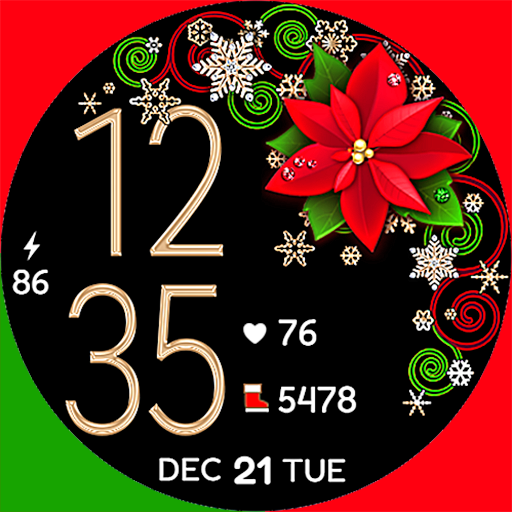
Christmas Snow On/Off Watch
Collection https://play.google.com/store/apps/dev?id=5351976448109391253 br Pretty and cut...

Christmas Village
font color="#28c0fa" Perfect watch face for this Christmas season! /font br br b Teleg...

Code Blue CPR Timer
Code Blue CPR Timer was developed and extensively tested to provide crucial information in...

Coexisting Diseases & Surgery
A comprehensive medical disease app that contains the following: br br 1) Gives the descr...
Currency Converter Pro
No Ads. br br Currency Converter providing real time exchange rates for over 180+ currenc...
Similar Apps

GitNex for Forgejo / Gitea
GitNex is an open-source Android client for Git repository management tool Forgejo and Git...
Widgets 2: Watch face
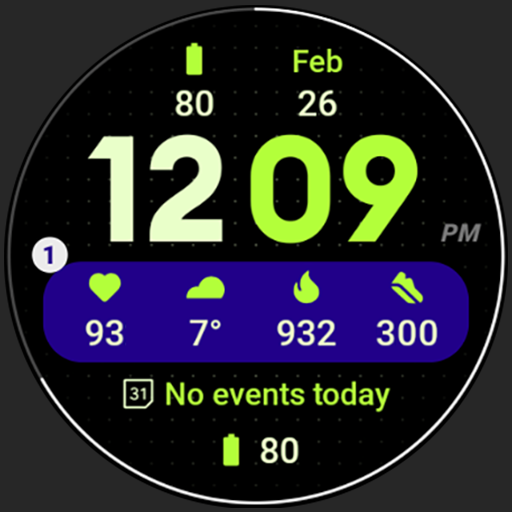
b Only for Wear OS 4+ devices /b br i // Not suitable for rectangular watches /i br b...
Calculator Plus
USA TODAY named Calculator Plus among its "25 Essential Apps", calling it the &q...

Electrician's Bible
This is a republishing of Electrician Bible application, and the reason is that due to nat...

Grok • Smartest AI Advisor
Grok is an AI-powered assistant, developed by xAI, designed to be maximally truthful, usef...
RealCalc Plus
RealCalc Plus is the pro version of RealCalc, one of Android's most popular scientific...
We Translate - AI Translator
We Translate - Effortless Multilingual Communication, Seamless Global Connection! br br I...
aWallet Cloud Password Manager
• Securely stores your passwords, credit card information, e-banking credentials, web acco...